
Working Copy
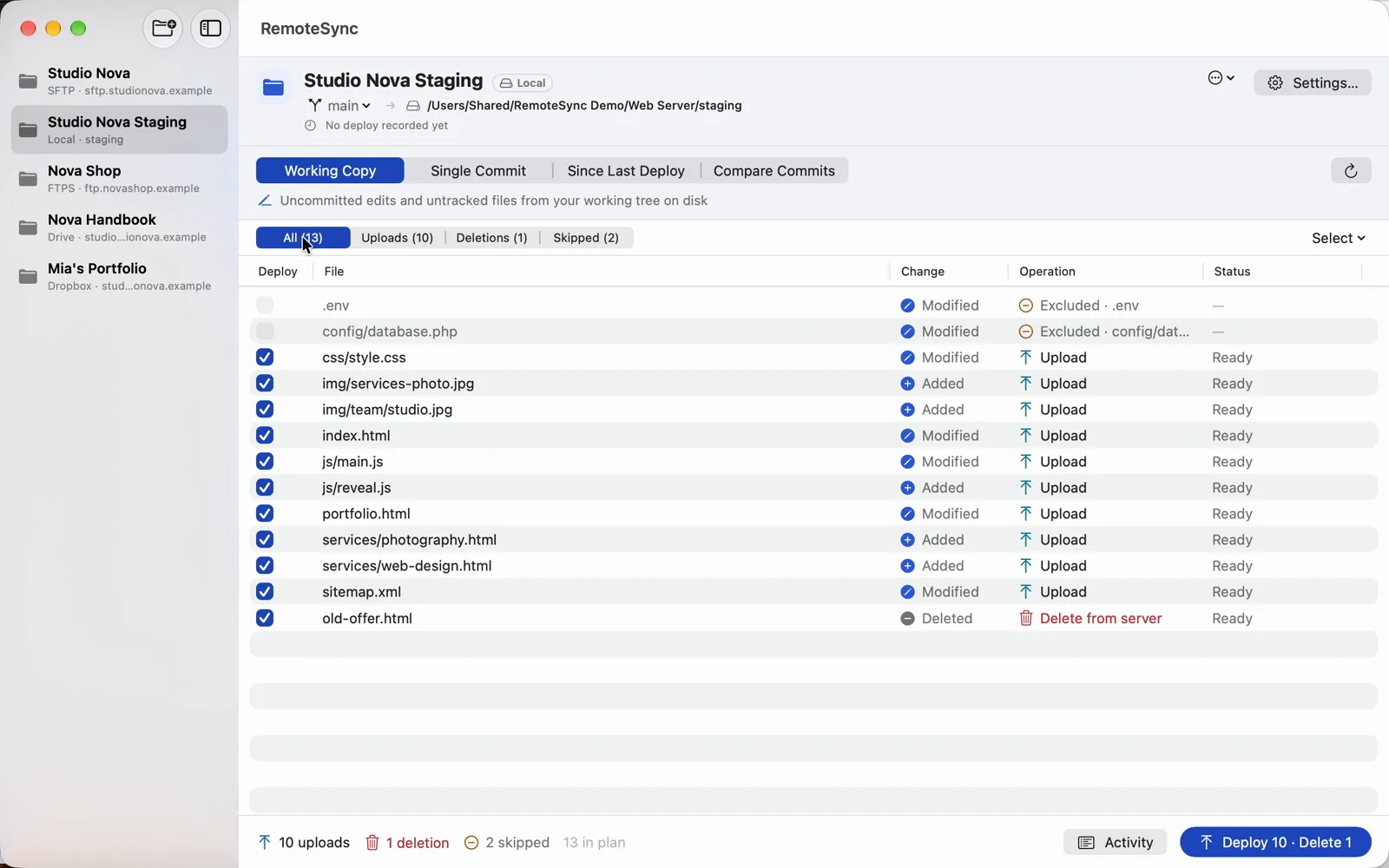
Uncommitted edits and new files, straight from disk. A file you edit after reviewing the plan is not uploaded: refresh and review again.
RemoteSync reads your Git repository, lists exactly the files that changed, and uploads only those to your server or cloud folder. You see every upload and every delete before it happens.
How it works
No more dragging folders into an FTP client and hoping you caught every changed file.
Choose its folder (⌘O). A folder inside a repository becomes the deploy folder, so one repository can hold several sites.
A server, a cloud folder or a folder on your Mac. Test Connection checks it before anything is sent.
Your uncommitted edits, one commit, everything since the last deploy, or the difference between any two commits.
Check the plan, untick rows, look at a diff, then Deploy (⌘↩). Errors are reported per file.
Four modes
Every mode builds the same reviewable plan. The commit modes upload the committed content, whatever is on your disk.
Uncommitted edits and new files, straight from disk. A file you edit after reviewing the plan is not uploaded: refresh and review again.
The files one commit changed, with that commit’s content. Search the history by message, author, hash, branch or tag.
Everything between the last fully deployed commit and HEAD. The marker only moves after a complete, successful deploy.
The net difference between any two commits, uploaded with the content of the newer one.
Review, then deploy
The video couldn’t play here.
Open the videoDouble-click a row, or press Space, to open its diff. Step through every file in the plan with the arrows, and untick one right there with “Deploy this file”.
Each row moves from Queued to Transferring to Uploaded. A deploy can be cancelled at any time.
Every upload and delete with its time and result. Copy it into a bug report: it never contains passwords or tokens.
Deploy safety
Allow them per project. Then every deploy that deletes lists the files and asks first — Cancel is the default button.
Secrets and tooling never leave your Mac: .env, .DS_Store, node_modules/ and editor folders are excluded from the start.
Destinations
Shared hosting with nothing but FTP or SFTP is exactly what RemoteSync was made for. It only puts, renames and deletes files: it never runs commands on your server.
SFTP with password or SSH key (Ed25519 or RSA, encrypted keys too) · FTPS with explicit TLS · FTP · SMB file shares, also one already mounted in Finder
Google Drive: My Drive and shared drives · Dropbox · iCloud Drive. Sign in in your browser, then pick or create the folder.
Any local folder or mounted volume — for example a local web server’s document root.
Git, built in
Git, Git LFS, SSH and TLS are inside the app. You don’t need Xcode, the Command Line Tools, Homebrew, git or git-lfs.
Files stored in Git LFS are deployed with their real content — never the pointer — in every mode. Size and SHA-256 are checked before the upload.
Deploy any branch without checking it out, switch the working tree like git switch, or point the project at another worktree.
Privacy
RemoteSync runs in Apple’s App Sandbox. Repositories are opened read-only; it writes only to target folders you choose.
Passwords, key passphrases and sign-ins are kept in your Keychain, never in a project file.
No analytics, no crash reporting, no account. Files go only to the destinations you configure.
Everything in it
What RemoteSync does today, by area.
Any number of repositories in a sidebar · a folder inside a repository as the deploy folder · folder mapping to differently named remote folders · plain folders without Git, watched for changes · copy a connection from another project · access survives moved and renamed folders
Upload, Delete from server, Excluded, Deletion disabled and Blocked rows, each with its reason · filters for uploads, deletions and skipped files · tick and untick, select all · exclude a file, folder or file type from the context menu · diff window with arrows through the plan, whole-file view and Ignore whitespace
Working Copy · Single Commit · Since Last Deploy · Compare Commits · deploy from any local or remote-tracking branch · Mark HEAD as Deployed
Temporary name, then rename into place · up to 4 parallel FTP connections · per-file errors and Cancel · per-row status · upload history per server · Deploy Again from the context menu · activity log you can copy
Deletes off by default, confirmed with the file list · gitignore-style exclude rules with safe defaults · blocked paths and symlinks · edited-after-review protection · SFTP host-key trust · FTPS certificate pinning
Built-in Git (libgit2) and Git LFS · LFS content from the repository, its cache or the LFS server, verified by SHA-256 · GitHub sign-in in the browser · branches, Check Out Branch, worktrees
SFTP · FTPS · FTP · SMB · Google Drive and shared drives · Dropbox · iCloud Drive · local folders and mounted volumes · turn destinations on or off in Settings
App Sandbox · Keychain · light and dark mode, Increase Contrast · keyboard shortcuts (⌘O, ⌘R, ⌘↩) · macOS 14 Sonoma or later
Availability
RemoteSync is finishing its last checks before release.
€5 one-time purchase, all features
Requires macOS 14 Sonoma or later.
Watch the demoQuestions
RemoteSync is coming to the Mac App Store soon. There is no release date yet; this page will link to the store as soon as it is there.
No. The planned price is €5, a one-time purchase through the Mac App Store.
No. Git, Git LFS, SSH and TLS are built into the app. Nothing else needs to be installed.
No. Repositories are opened read-only; planning and deploying never touch the index or create lock files. Only Check Out Branch writes to the working tree, and it asks for that permission separately the first time.
No. It uploads, renames and deletes files, and creates folders. That is all it needs, which is why it works on shared hosting without shell access.
Nothing, unless you allow deletes for that project. Then each deploy that deletes lists the files and asks before it removes anything. On Google Drive, Dropbox and iCloud Drive deleted files can be restored from the service’s trash.
RemoteSync runs in Apple’s App Sandbox, so it only sees the folders you grant it with the standard Open dialog. The choice is remembered, and follows the folder if you move or rename it.
Only to the destinations you configure, and LFS requests to your repository’s LFS server. RemoteSync has no analytics, no crash reporting and no account with us.
A 21-second recording of a real deploy: the plan, the delete confirmation, every file going up, and the activity log.
Watch it in action